We provide premium cPanel hosting!
  • Contact
  • View Cart (0)
  • Client Logon
Your Company Logo
  • Domains
    Register Domain
    Your very own website address
    Transfer Domain
    Move your domain to LDR Web Hosting

    Hundreds of customer's around the world trust LDR Web Hosting to manage their domain. We provide freedom and control including full access & the ability to move/sell your domains.

  • Web Hosting
    Web Hosting
    Reliable and fast hosting
    Web Design
    Hire LDR Design Agency to build your website

    We provide a wide range of services for your business including Web Hosting, Dedicated Servers, VPNs & more.

  • Extras
    Website Security
    Keep your website safe & secure
    SEO Tools
    SEO report with optimization steps
    Professional Email
    Powerful email and productivity
    SocialBee
    Manage your social media
    LDR PBX
    A professional phone system

    Enhance your website with these extras including our website backup & security services.

  • Company
    LDR Web Hosting
    Learn more about LDR Web Hosting
    Announcements
    Get up to date with the latest news

    Learn more about what makes LDR Web Hosting the best choice for web hosting services.

  • Support
    Contact Form
    Contact our pre-sales department
    Submit Ticket
    Contact our support via ticket
    Knowledgebase
    View our vast documentation

    If you have a pre-sale question or issue with your website we are here to help.

  • Order

Knowledgebase

Portal Home > Knowledgebase > Mail Filters & SPAM > How to Edit an Account Level/Global Email Filter in cPanel

  Categories

Backup/Restore
4
cPanel - Control Panel
24
Databases
11
DNS - Nameservers
6
Domain Management
10
Email
17
FTP
9
Mail Filters & SPAM
8
Mobile
11
Others
3
PayPal
7
Security
10
Softaculous
69
SSL
5
WordPress
17

  Categories

  Support

My Support Tickets
Announcements
Knowledgebase
Downloads
Network Status
Open Ticket

How to Edit an Account Level/Global Email Filter in cPanel Print

  • 0

1. Log in to your cPanel account.


2. In the Email section, click on Global Email Filters.

account-level-filtering-icon.gif


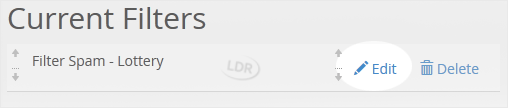
3. Under Current Filters are displayed all existing filters. Click Edit next to the appropriate one.

4. Make the desired changes to the filter.


5. Click on Save.


Was this answer helpful?

Related Articles

How to Enable BoxTrapper in cPanel BoxTrapper requires all email senders not on your Whitelist to respond to verification emails. It... How to Edit "User Level Email Filter" in cPanel 1. Log in to your cPanel account. 2. In the Email section, click on Email Filters. 3. Under... How to Delete "User Level Email Filter" in cPanel 1. Log in to your cPanel account. 2. In the Email section, click on Email Filters. 3. Under... How to Create an Account Level/Global Email Filter in cPanel to Fight Spam It's hard to stop spam email entirely but you can filter it, discard it, deliver it to the... How to Delete an Account Level/Global Email Filter in cPanel 1. Log in to your cPanel account. 2. In the Email section, click on Global Email Filters. 3....
« Back

Powered by WHMCompleteSolution

  Support

My Support Tickets
Announcements
Knowledgebase
Downloads
Network Status
Open Ticket
People trust LDR Web Hosting
Join them today
Services
  • Web Hosting
  • Web Design
Extras
  • Website Security
  • SEO Tools
  • Professional Email
Domains
  • Register Domain
  • Transfer Domain
Company
  • LDR Web Hosting
  • Announcements
Support
  • Contact Form
  • Submit Ticket
  • Knowledgebase
9624 Cincinnati Columbus Rd Suite 210
sales@ldrwebsites.com
+1-513-926-9560
Follow LDR Web Hosting
LDR Web Hosting Facebook
LDR Web Hosting Twitter
LDR Web Hosting Google
LDR Web Hosting LinkedIn
LDR Web Hosting © 2025 | All rights reserved

Loading...
Loading...

Generate Password

Please enter a number between 8 and 64 for the password length
LDR Web Hosting Facebook
LDR Web Hosting Twitter
LDR Web Hosting Google
LDR Web Hosting LinkedIn